Ultimate Guide: Manga Web to CBZ!
A simple, step-by-step guide to building your digital manga library
Step 1: Download Manga using JAM
We use JAM (an open-source tool) to rip high-quality images from the web.
- Install Java: JAM needs it to run. Get it from Java.com.
- Get JAM: Download the latest release from GitHub Page.
- Run it: Download JAM.zip, extract it, and then run JAM and paste your manga’s web link.
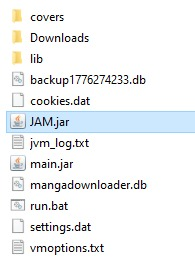
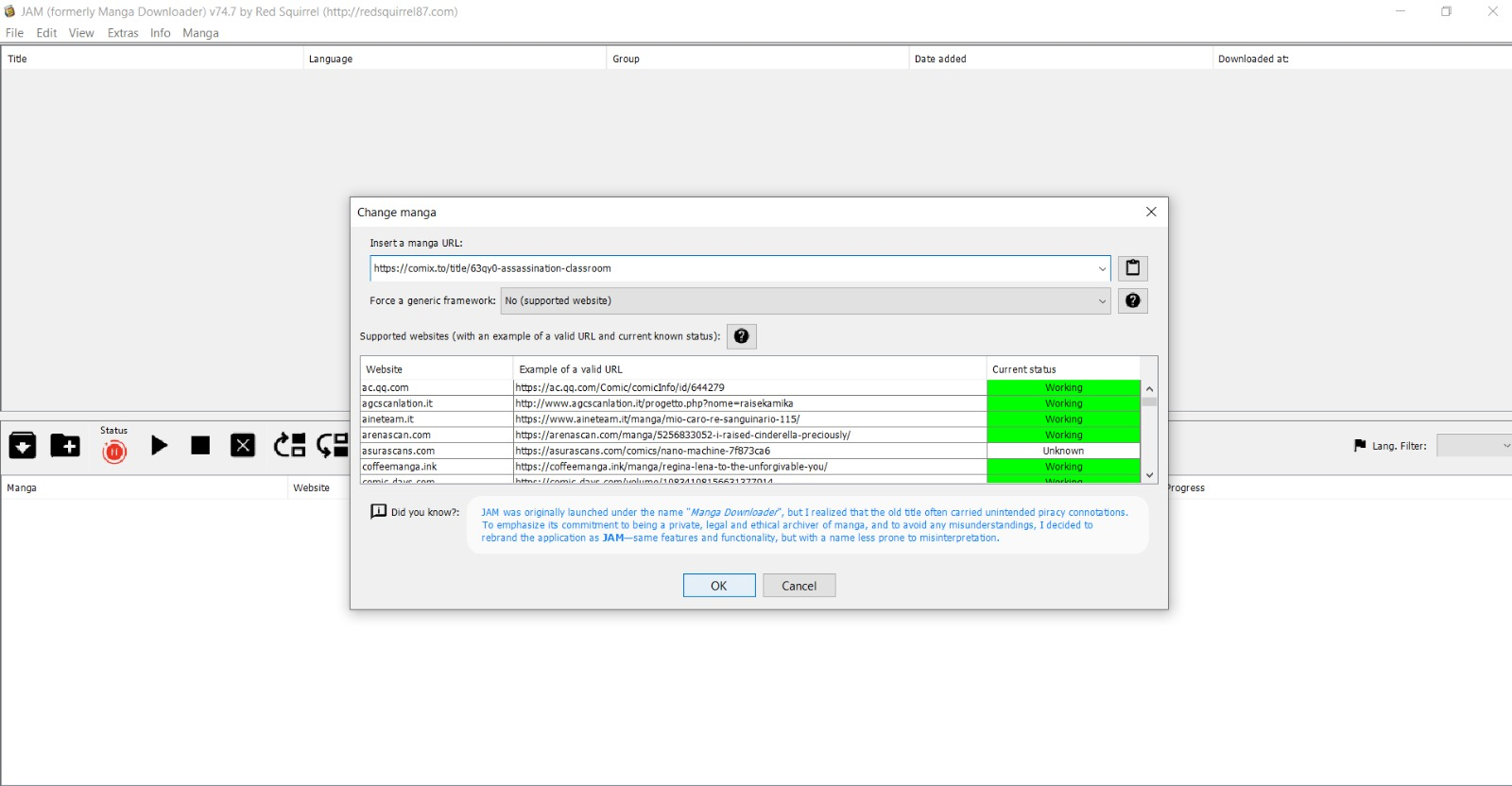
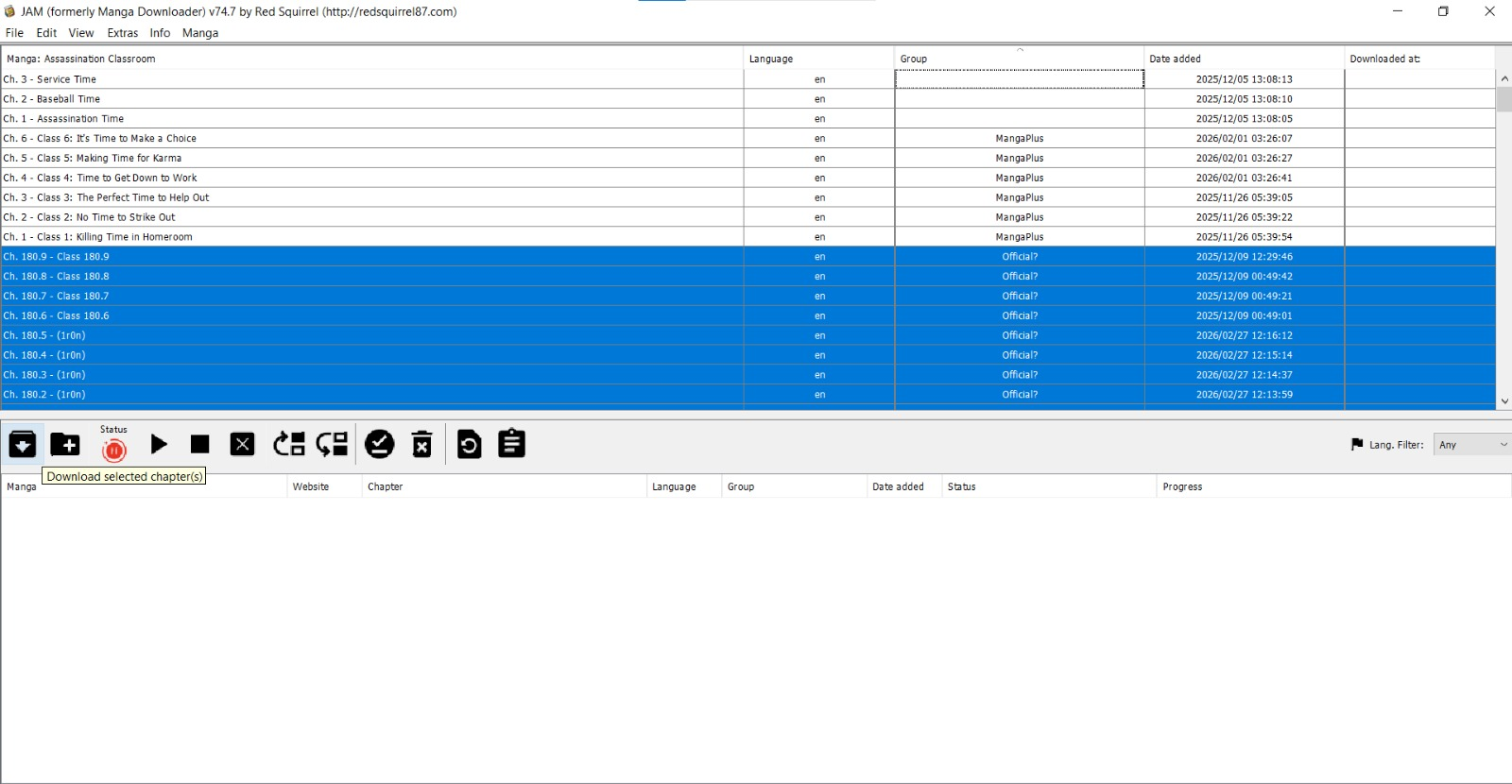
Expected Directory Structure
Your input directory should contain folders representing individual chapters. The script will ignore any non-directory files in the root.
1 | Manga_Name/ |
Step 2: Setup Python & The Converter
We use a custom Python script to perfectly sort and bundle those messy downloaded folders into clean Volumes.
- Install Python: Download it from Python.org.
Crucial Note for Windows: > During the Python installation, you must check the box that says “Add Python to PATH” at the bottom of the setup window.
- Download the Tools: Go to our GitHub Repository and download the project files (click “Code” -> “Download ZIP” and extract it). This folder contains the Python script and the shortcut files you need.
Step 3: Configuration
- Configure: Open
cbz_builder.pyin a text editor. Update theINPUT_DIR(where JAM saved your manga) andOUTPUT_DIR(where you want the finished files to go).1
2
3INPUT_DIR = Path(r"C:/Users/Owner/Downloads/Manga_Name")
OUTPUT_DIR = Path(r"C:/Users/Owner/Downloads/Manga_Name_cbz")
TEMP_DIR = Path(r"C:/Users/Owner/Downloads/temp_cbz")
Customizing Volume Sizes
By default, the script groups chapters based on predefined thresholds. To change how many chapters go into a volume, simply adjust the thresholds list in the code:
1 | # The numbers represent the maximum chapter limit for that volume. |
- Execute: Double-click your
run.bat(Windows) orrun.sh(Mac/Linux).
RUN PYTHON
For Windows:
Simply double-click the
Simply double-click the
run.bat file. It will handle everything automatically!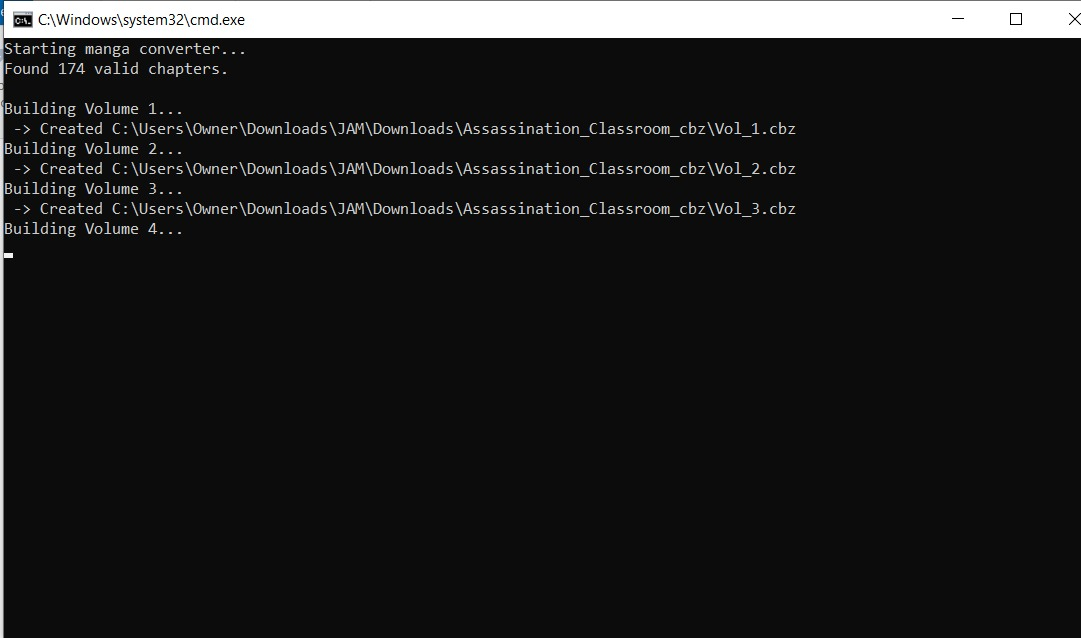
For Linux & macOS:
Both Linux and Mac use the
Note: For security reasons, Mac/Linux requires you to give the file permission before it can run the first time:
1. Open your Terminal.
2. Type
3. Drag and drop the
4. You can now run it anytime by typing
Both Linux and Mac use the
run.sh file.Note: For security reasons, Mac/Linux requires you to give the file permission before it can run the first time:
1. Open your Terminal.
2. Type
chmod +x (make sure there is a space at the end!).3. Drag and drop the
run.sh file into the terminal window and press Enter.4. You can now run it anytime by typing
./run.sh in the terminal, or by double-clicking it (depending on your system settings).- Wait: The script will magically sort the chapters, fix the page orders, and bundle them into neat
Vol_1.cbzfiles!
Extra: Best E-Readers for Manga
Where do these .cbz files look the best?
- ReadEra for Android
- Panels - Comic Reader for iOS


Discussion